Tutorial
From the empty font to the installed font, in ten steps. On Mac, Cmd replaces Ctrl everywhere.
1. Install and launch
Windows 10 or 11: unzip the Windows archive and run fontista.exe. If SmartScreen complains, click “More info” then “Run anyway”.
Mac (Apple Silicon): unzip the archive and drag the app into Applications. The app is not notarised: on first launch, right-click the icon, Open, Open. If macOS says it is “damaged”, run xattr -dr com.apple.quarantine /Applications/Fontista.app in Terminal.
2. The welcome screen
Launched without a file, Fontista offers its starting points: New empty font (the Latin set, ready to draw), Handwritten font… (a wizard sets heights, slant, character set and brush), Open…. Your recent files appear below. You can also drop a font file on the window. The welcome screen goes away at the first action; Help › Welcome screen brings it back.
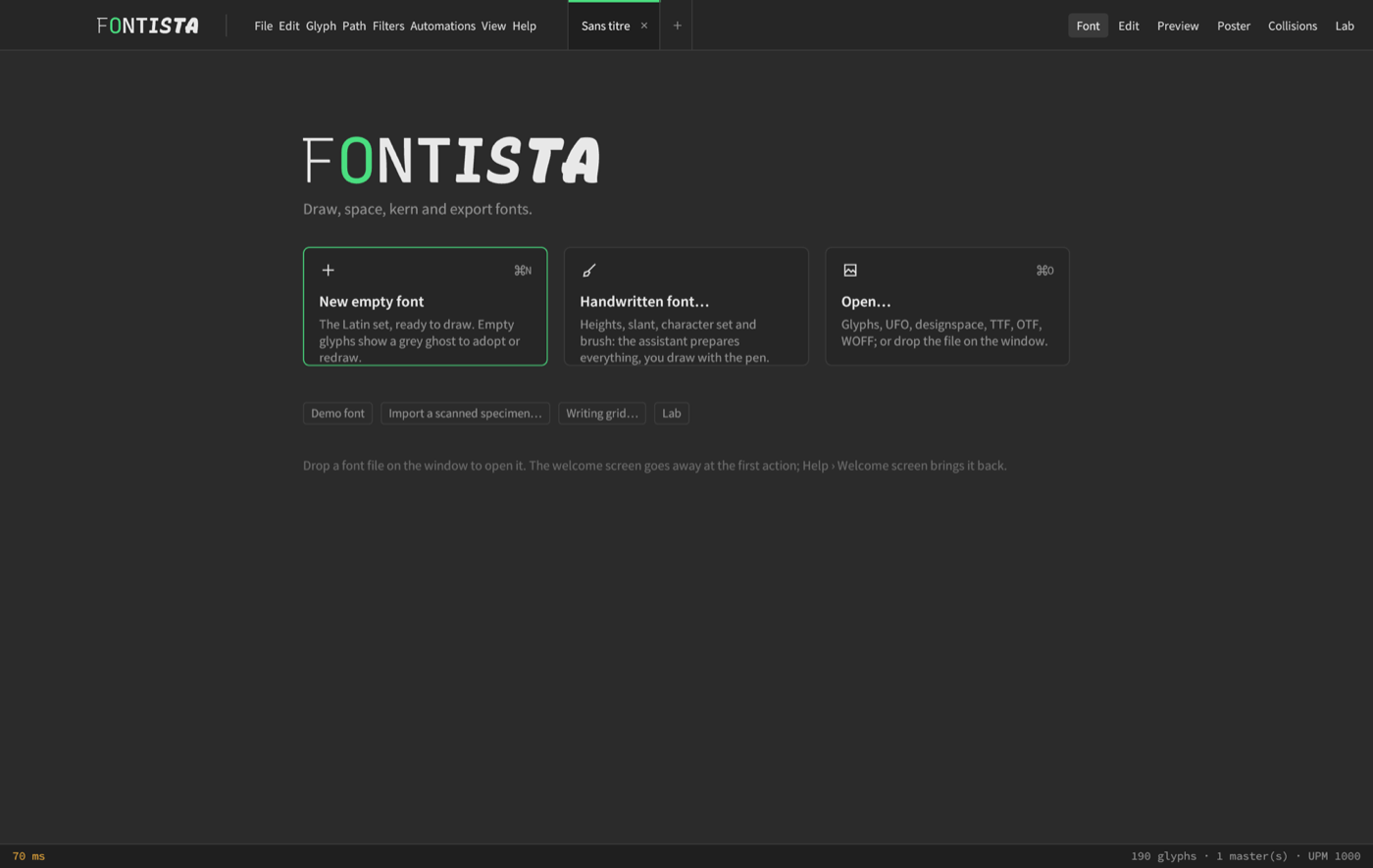
Several fonts can stay open in tabs: “+” opens a tab, Ctrl+W closes it.
3. The Font view: adding glyphs
Every glyph is in a grid. Empty cells show a grey ghost (the reference glyph) that you adopt or redraw. Category filters on the right, search by name or character at the top, a size slider.
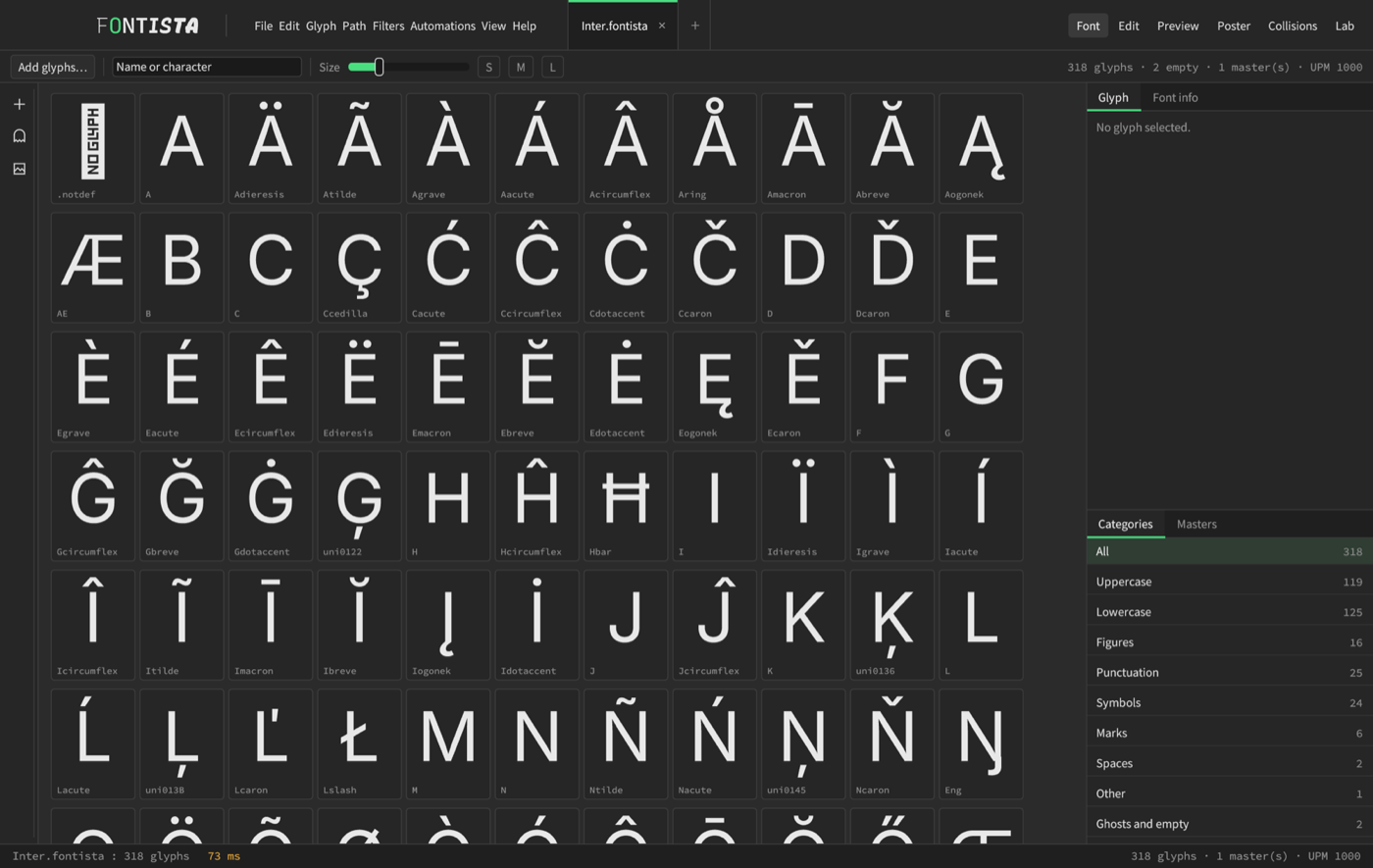
Add glyphs
Click Add glyphs… (or type a missing character in the search: an “Add” button appears). The field understands:
| You type | Fontista adds |
|---|---|
a-z | the whole range |
U+00E9 | the character by its code point |
eacute, f_i, a.sc | a glyph by its name |
éàç | each character |
A preview shows what will be added before you confirm. In the side panel, the Name field suggests conventional names and the matching Unicode.
4. The Edit view: drawing
Double-click a glyph in the Font view. The tool rail is on the left; the keys in brackets select the tool.
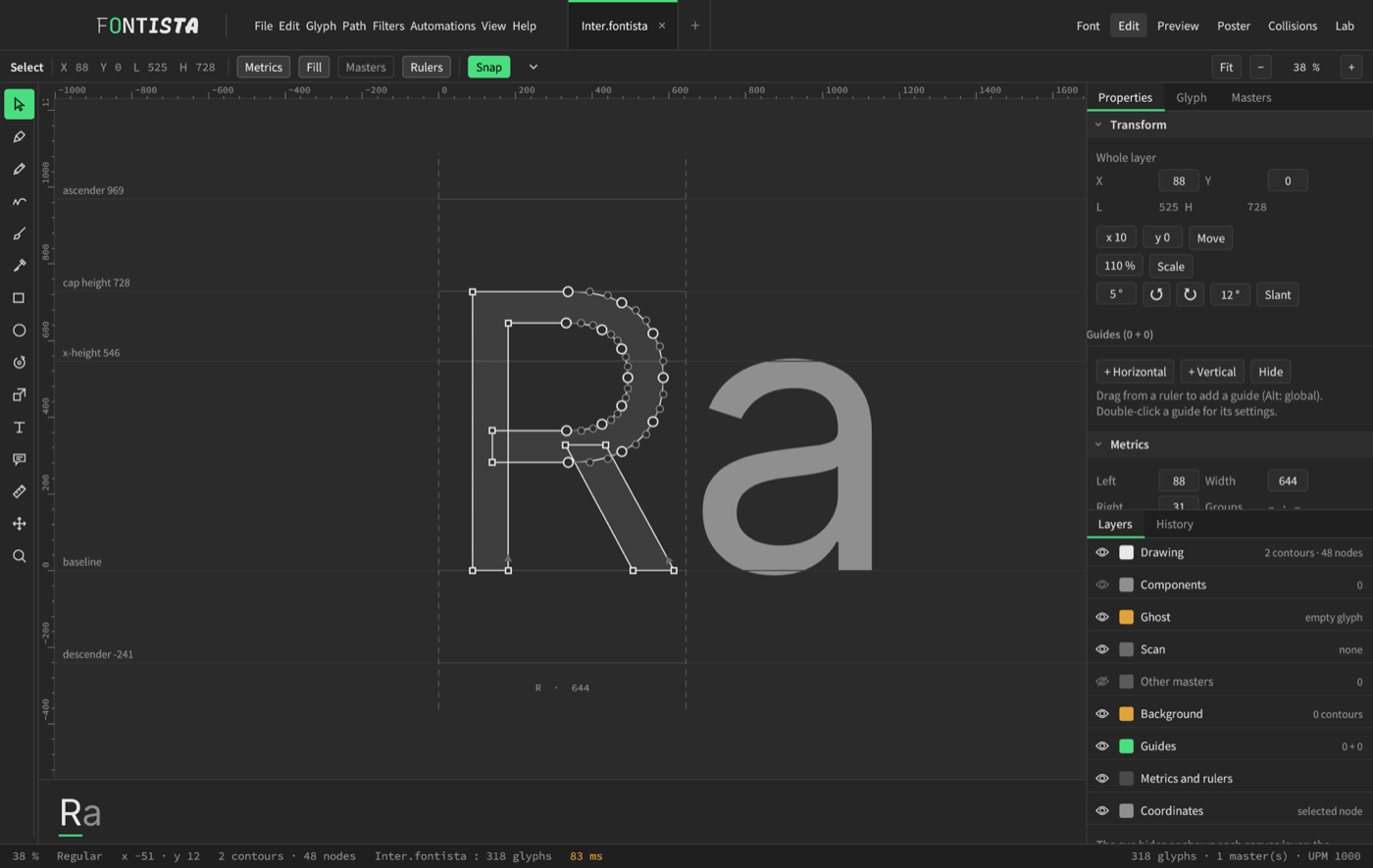
| Tool | What it does |
|---|---|
| Select (V) | click, rectangle, arrows (1, Shift 10, Cmd 100); double-click a node: smooth or corner |
| Pen (P) | click: corner; click-drag: curve; click the first point: close |
| Pencil (C) | freehand: the gesture becomes a clean curve outline |
| Smooth (A) | rub a path: it smooths out and loses nodes |
| Brush (B) | a stroke whose width follows pen pressure; in Skeleton mode the stroke stays editable |
| Knife (E) | drag across a closed outline to split it in two |
| Rectangle, Ellipse (F, Shift+F) | shapes; Shift: square or circle |
| Rotate (R), Scale (S) | transformations around the selection centre |
| Text (T) | type a line to see the glyph in context; Alt+arrows: kern the pair |
| Measure (L), Note (N), Hand (H), Zoom (Z) | distances and angles; notes; navigation |
Snapping and guides
The Snap button snaps nodes to metrics, guides, other nodes and the grid. Hold Ctrl: no snapping. Shift: 0, 45 and 90° angles. Drag a guide out of a ruler (Alt: global guide); double-click it for its settings. With two nodes selected, the Align and Distribute buttons appear.
Star nodes
Select a node between two curves, then Path › Star node (continuous curvature): the handles are recalculated so that curvature is the same on both sides, and stay that way when you move the neighbours. The node is drawn as a star.
Undo
Ctrl+Z and Ctrl+Shift+Z over 200 levels. Save with Ctrl+S in the .fontista format.
5. Spacing and kerning
Sidebearings and metric keys
The Properties panel gives left and right sidebearings and the width. The Keys fields tie values between glyphs:
| Key | Meaning |
|---|---|
=H | same value as H |
=|H | the opposite side of H |
=H+10 | H plus 10 units |
=auto | the value automatic spacing gives this drawing, updated at every change |
An orange value no longer follows its key: Glyph › Update metrics (keys) (Ctrl+Alt+M).
Automatic spacing
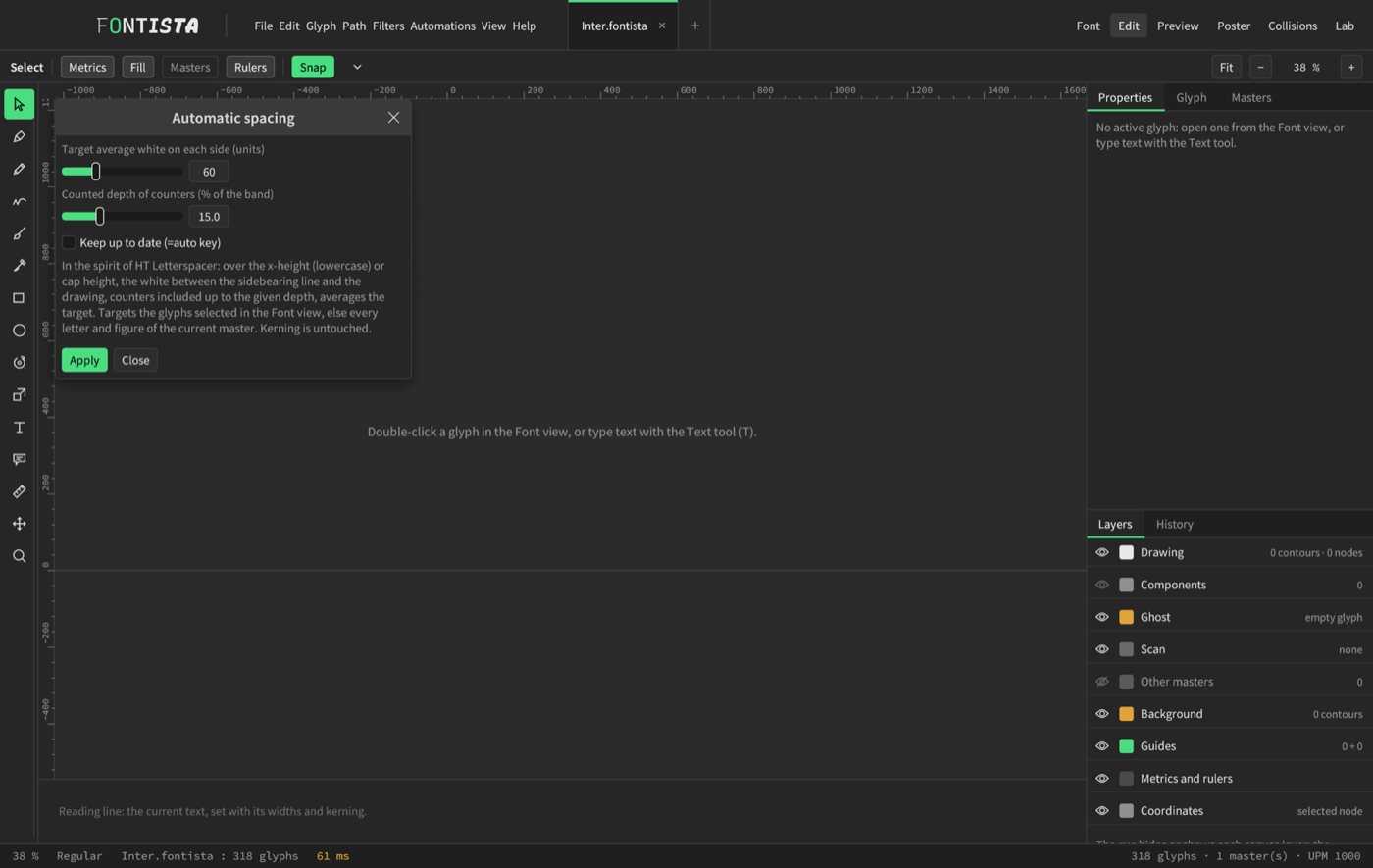
Automations › Automatic spacing… sets the sidebearings of the selected glyphs (otherwise every letter and figure) so that the average target white is the same on each side, counters of round letters included. The “Keep up to date” checkbox sets the =auto key so spacing follows your edits.
Kerning
With the Text tool, type a pair (“AV”) and fix it with Alt+←/→. Kerning groups (Glyph panel) apply the value to all their members.
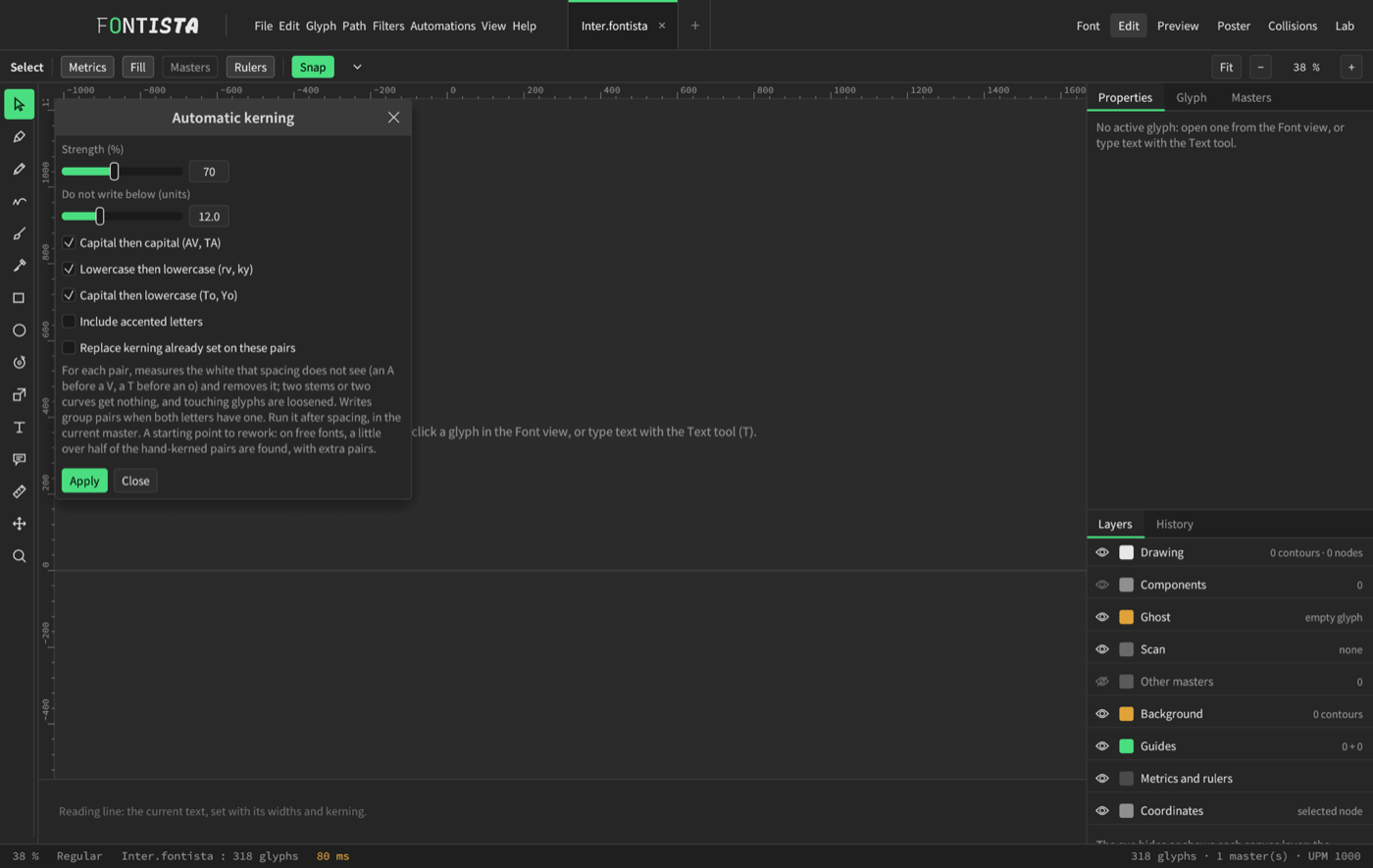
Automations › Automatic kerning… measures the white that spacing cannot see (A before V, T before o) and proposes the pairs. It is a starting point: on free fonts it finds about half of the hand-kerned pairs, with some extra ones. Run it after spacing and review the result.
6. Preview and collisions
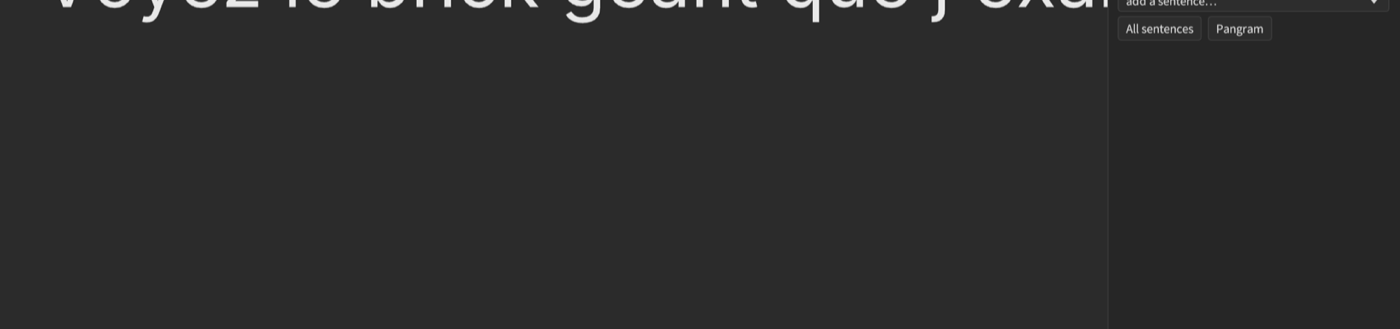
The Preview tab builds the font and sets it with a real shaping engine: widths, kerning, ligatures, OpenType features. It shows what the user will see, not what you think you drew.
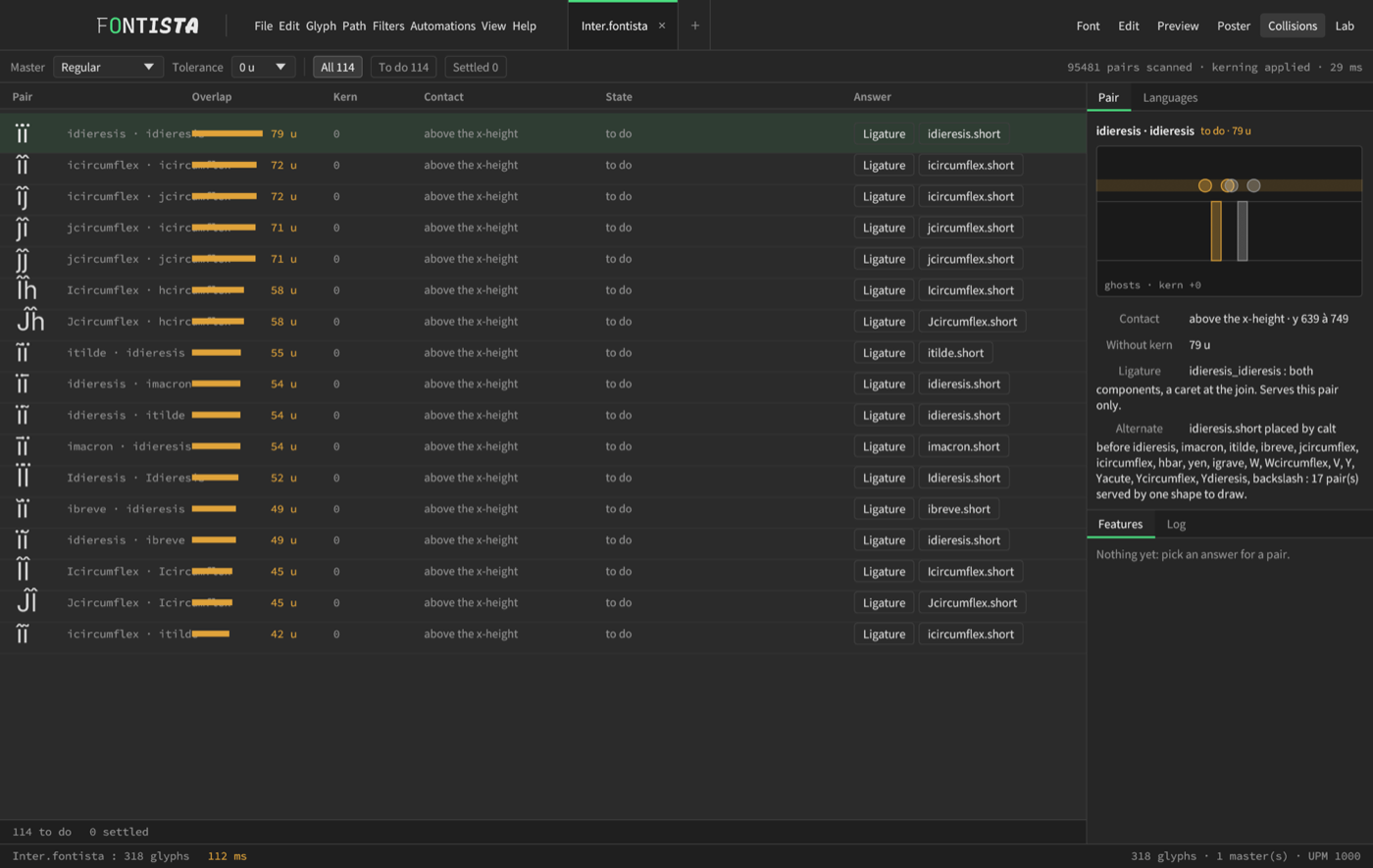
The Collisions tab scans every pair and ranks those whose ink touches, from deepest to lightest. For each: “Ligature” (an a_b glyph) or “Replacement form” (an a.short glyph set by the calt feature).
7. The Lab: Modules and Liquid
Two workshops to build letters differently. Pick them with the Modules and Liquid chips at the top. The Lab works on a glyph already in the font: add it first (Glyphs tab on the right, Add field).
Modules
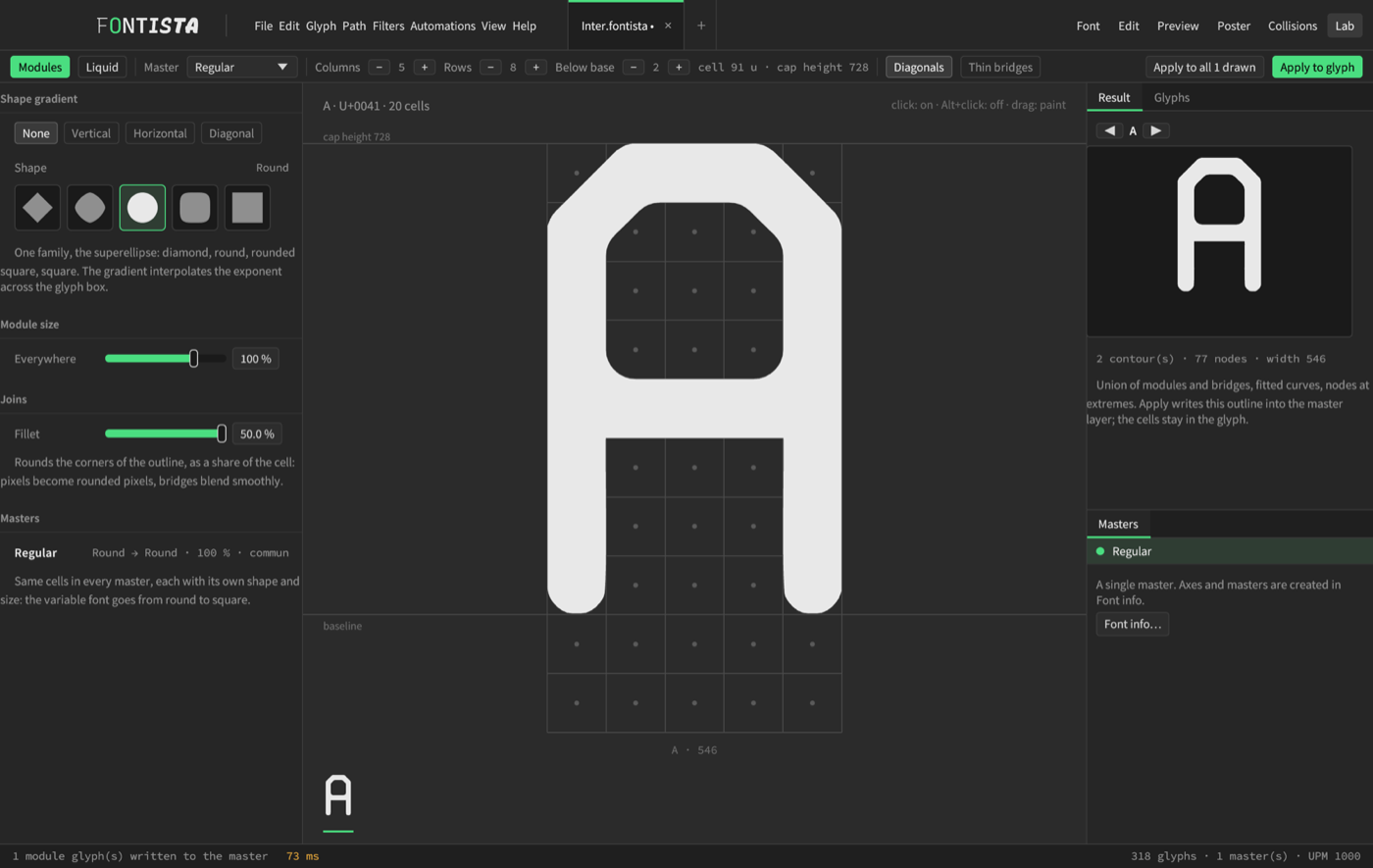
A grid of cells (columns × rows over the cap height). Click to turn on, Alt+click to turn off, drag to paint. Module shape: diamond, round, rounded square, square, with a gradient from one corner to the other; size; corner fillet. A square module with no fillet gives a pixel font.
Liquid
Draw node strokes with their own radius; the matter melts where they get close. Settings: Mass, Melt, Tension, Wobble, Smoothing, Step, Mirror. Draw tool (D): drag lays a stroke, a click a drop, pen pressure sets the radius. Move tool (V): drag a node, Shift for the whole stroke, Alt+wheel for its radius, Delete to remove it.
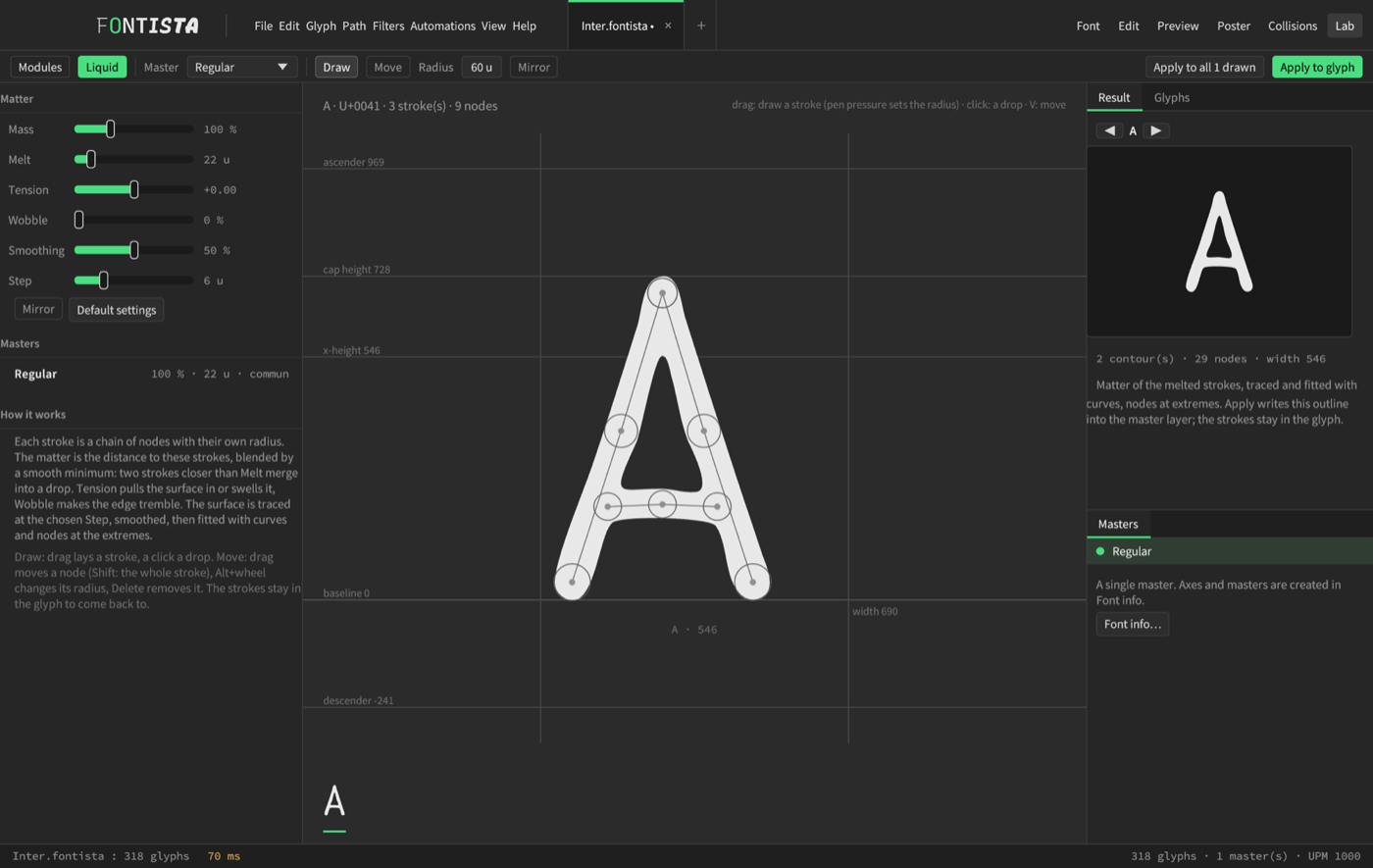
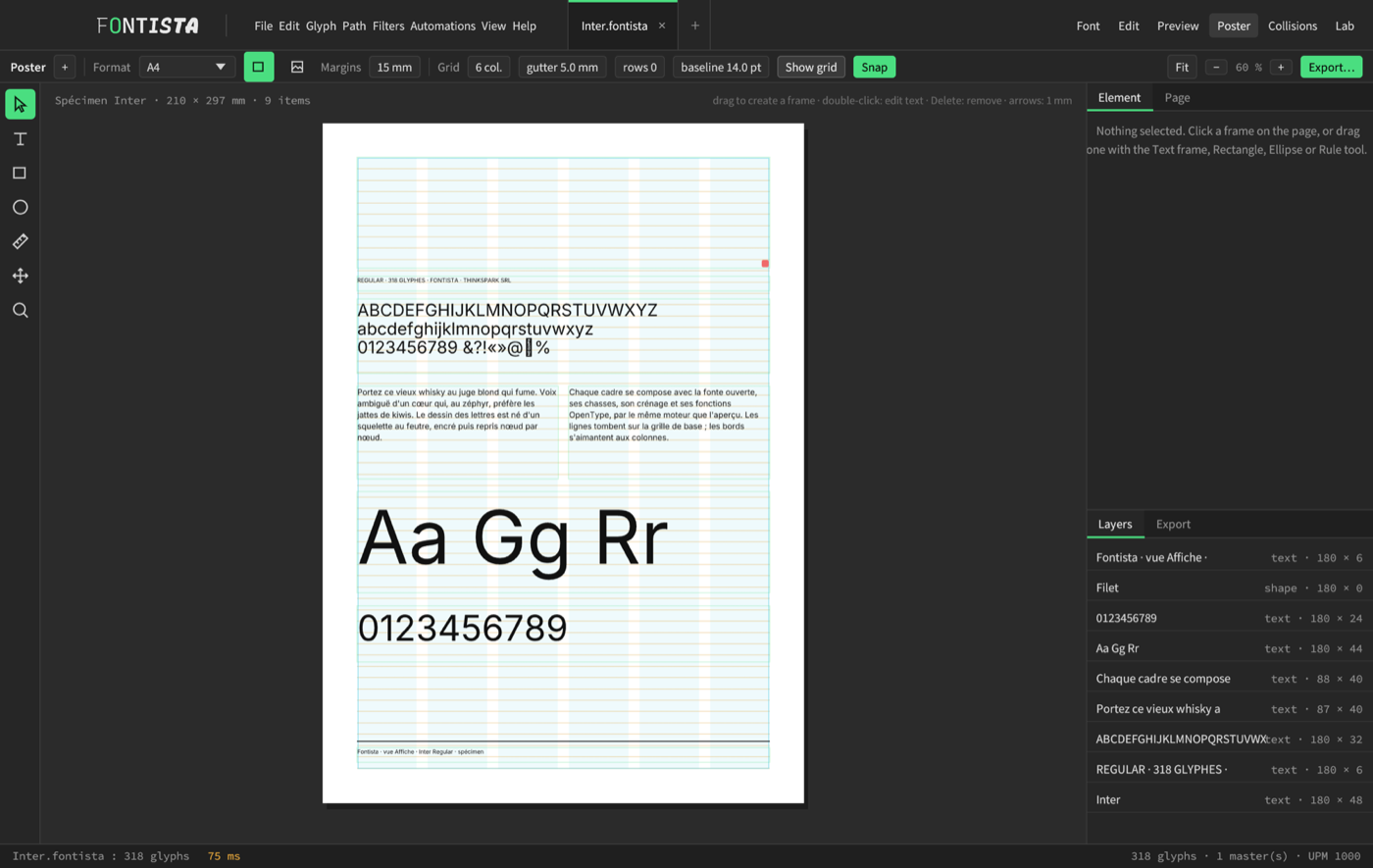
8. The Poster
A page composed with your font: format (A3, A4, A5, Letter, square, free), margins, columns, modular grid, baseline grid. Draw text frames, rectangles, ellipses, rules; they snap to the grid. Each frame picks its master, size, leading, alignment and features. Export: vector PDF (text as outlines, optional bleed and crop marks), SVG, PNG at 150, 300 or 600 dpi. The first poster of a font is a ready-made specimen page.
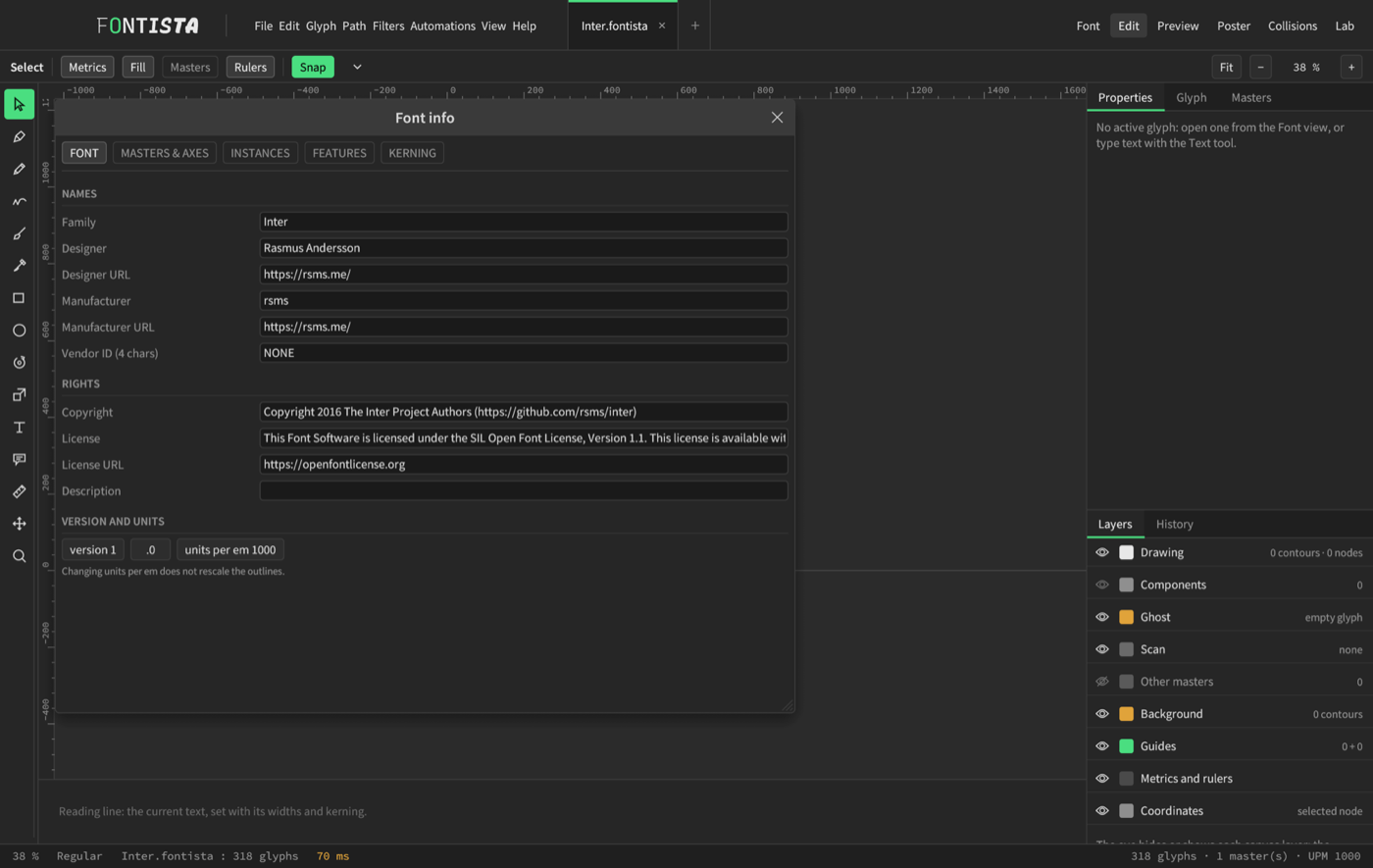
9. Font info and export
Ctrl+I opens Font info: family name, designer, licence, metrics, axes and masters, instances, feature code, kerning table. The Vendor ID field holds 4 characters (see the FAQ).
Ctrl+E opens the export window:
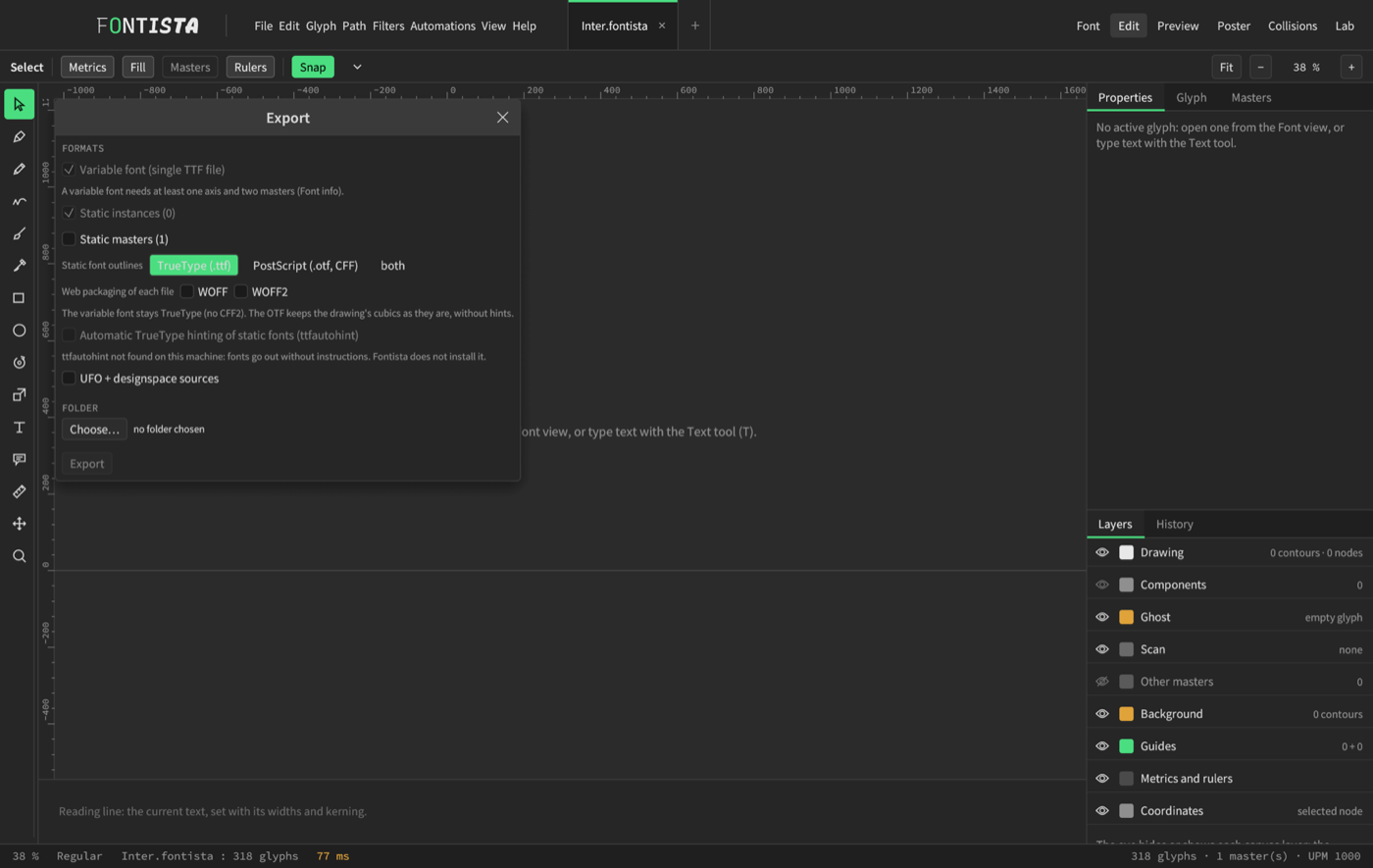
| Option | Produces |
|---|---|
| Variable font | a single TTF (at least one axis and two masters are needed) |
| Static instances / masters | one file per instance or master, as TrueType, PostScript (OTF) or both |
| WOFF, WOFF2 | a web packaging of each file |
| UFO + designspace sources | to continue in another editor |
Pick a folder then Export. On Mac, double-click the TTF then “Install” (Font Book); on Windows, right-click › Install. Export needs a licence; the free trial can do everything else.
10. Useful shortcuts
| Shortcut | Action |
|---|---|
| Ctrl+N / Ctrl+O / Ctrl+S | new font, open, save |
| Ctrl+I / Ctrl+E | Font info, export |
| Ctrl+W | close the tab |
| Ctrl+Shift+] / [ | next, previous tab |
| Ctrl+Alt+M | update metrics from keys |
| Ctrl+Shift+K | command console (? for help) |
| Ctrl+0 | fit the zoom to the glyph |
A question left unanswered? See the FAQ.